How to Share Notes Online Without Login
Create a note, save it, and share the correct link. A practical guide to ownership, recipient access, and keeping a copy.
Woff field note
Published
Updated
3 min read
 Written by Woff Team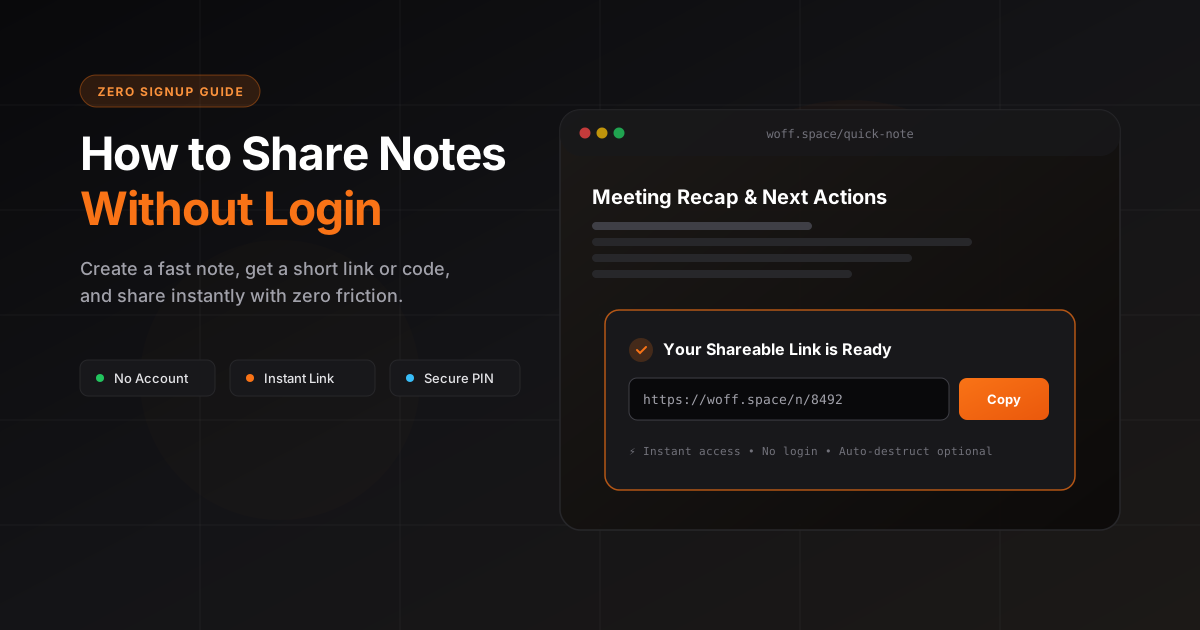
A short meeting recap or set of delivery instructions often needs one readable page. Woff lets you create that page in a temporary room and send it without asking the recipient to register.
This guide follows the note workflow in the app. For a few lines of plain text, send a room message instead. For a document that several people must edit at the same time, choose a tool built for that workflow.
1. Create the room and open Note
Start a new room. In the composer, choose Note. Add a descriptive title, such as ‘Homepage review — next actions’, so the recipient understands the purpose before reading the details.
Use a shared note when it should be readable by recipients. A private note stays accessible to its creator; a room invitation does not unlock it for other people.
2. Write a note with an explicit next action
Put the purpose first, followed by the decision, owner, and deadline. You can paste the example below into the editor and replace its placeholders.
Homepage review — next actions

Decision: keep the current headline and replace the hero image.
Owner: [name]
Due: [date and timezone]

Please review:
1. Updated hero screenshot attached in this room
2. Mobile spacing at 390px

Reply with the filename and the change you want.
Avoid placing account passwords, API keys, or customer identity documents in the note. A link that gives access can be forwarded, and content can be copied after someone opens it.
3. Save, then share the intended destination
Save the note and wait for the app to confirm it. Use the note’s sharing control when the recipient should land on that note. Use the room’s invitation control when the recipient needs the surrounding messages and attachments.
Send the full link with a short explanation: ‘Here are the homepage review notes; please reply with the filename and requested change.’ Copy the invitation supplied by Woff instead of inventing a URL from a short room code.
Recipients need a browser and the correct link. Optional sender accounts are for managing your own rooms; they are not a requirement for a recipient to read a shared note.
4. Keep feedback separate from editing
The creator edits the note. Recipients can add their own messages or notes in the room, but cannot rewrite yours. If you update the note, ask readers to reopen the saved version before acting on a changed instruction.
If the editor reports a conflict, use its recovery choices before replacing saved content. Keep a copy of your draft when a connection is unreliable. The help page explains saving and ownership.
5. Export the outcome before expiry
Use a note export for a local Markdown or text copy. For a visual document, use Print / PDF and review the browser’s print preview, especially for images, page breaks, and non-Latin text.
Standard rooms expire after 48 hours without activity. Pro pilot rooms, when available, have a fixed 7- or 30-day expiry; activity does not extend that deadline. Check the expiry shown in your room and download anything you need before it ends.
Useful answers
Frequently asked questions
Can someone else edit my note?
A note is edited by its creator. Sharing it does not turn it into a document that everyone can edit. Other room participants can send their own messages or notes.
Does a private note become shared when I send the room link?
No. Private notes are creator-only. To send a note to someone else, use a shared note and check the saved result before sharing its link.
Can I keep the note forever?
Woff is temporary storage. Download an export while it is available. Standard rooms expire after 48 hours without activity; a Pro pilot room, where available, has a fixed 7- or 30-day deadline.